
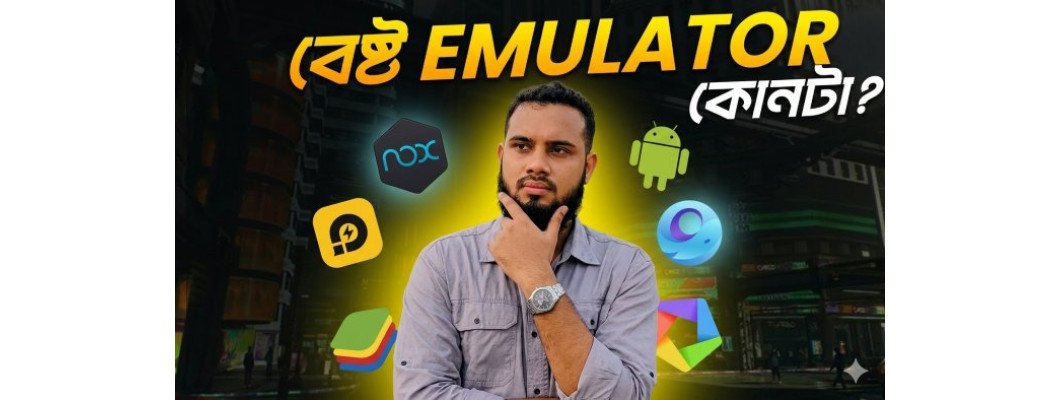
If you want to run mobile apps smoothly on your Windows PC, choosing the right Android emulator is crucial.
In this complete guide from Tech Mart, we explain how each emulator works, who it is best for, performance bottlenecks, and hardware requirements. By the end, you’ll know exactly which emulator suits your PC.
10. Droid4X
An older but lightweight Android emulator optimized for Windows 7, 8, and 10.
- Default rooted
- Developer & mod-friendly
- Low system requirement
Downside: Security risks, banking apps may not work, PUBG & Google Pay may block rooted access.
Best for low-end PCs and experimental users. Not recommended for secure or competitive gaming.
9. GameLoop
Developed by Tencent, optimized for PUBG and Tencent games.
- Works on Windows 7–11
- 60 FPS smooth gaming possible
- Low entry requirement (Dual-core, 4GB RAM)
Downside: No default Play Store, RAM heavy, ads complaints.
Perfect for competitive online gamers.
8. PrimeOS
Not a traditional emulator — it’s a full Android-based operating system.
- Dual boot support
- No virtualization overhead
- Fast native performance
Downside: Partition setup required, Play Store issues in some versions.
Best for users wanting full Android experience on PC hardware.
7. Phoenix OS
Another Android-based OS similar to PrimeOS with desktop-style interface.
- Start menu & taskbar layout
- Native performance
- Low minimum requirements
Recommended for users who prefer Android as primary desktop alternative.
6. Andy Emulator
Virtual machine-based Android emulator (VirtualBox dependent).
Downside: Slow boot time and app launching.
Once popular, now less recommended due to lack of updates.
5. Genymotion
A professional-grade emulator mainly for developers.
- Android Studio alternative
- Cloud-based device simulation
- Fast & customizable
Not for gaming.
Best for app development, automation, and testing.
4. MEmu Play
High-performance gaming emulator for Windows.
- Multiple instances support
- Advanced key mapping
- One-click root option
- Drag-and-drop APK installation
Great for PUBG, Free Fire, COD Mobile, Genshin Impact.
Requires: i5 8th Gen / Ryzen 5 3rd Gen+, 8–16GB RAM, SSD recommended.
3. LDPlayer
One of the most popular lightweight gaming emulators.
- High FPS stability (90–120 FPS possible)
- Low storage usage
- Excellent key mapping
Downside: Needs virtualization enabled. High RAM usage with multiple instances.
Best balanced choice for serious mobile gamers.
2. Nox Player
Lightweight and responsive emulator for Windows & macOS.
- Fast boot time (~15 seconds)
- Good customization
- Balanced gaming & app usage
Great for users wanting performance without heavy resource consumption.
1. BlueStacks
The most popular Android emulator in 2026.
- Available for Windows & macOS
- Optimized for heavy gaming
- Eco Mode & Performance Mode
- Gamepad support
- DPI customization (160–480 DPI)
- DirectX / OpenGL switching
Best all-rounder for gaming + productivity apps like WhatsApp and Instagram.
Recommended Specs: i5/i7 10th Gen+, Ryzen 5 3500+, 16GB RAM, NVMe SSD for best performance.
Hardware Matters: Get the Best Performance
Even the best emulator cannot perform well without proper hardware.
For smooth Android gaming and app usage, we recommend:
- Intel Core i5 / Ryzen 5 or higher
- Minimum 8GB RAM (16GB ideal)
- SSD or NVMe storage
- Dedicated GPU for heavy gaming
Upgrade Your PC with Tech Mart
At Tech Mart Bangladesh, we offer high-performance laptops, mini PCs, SSDs, RAM upgrades, and gaming accessories optimized for Android emulators.
Whether you are a gamer, developer, or productivity user — we have the right device for you.
Explore our collection today and build your perfect emulator-ready setup.
Final Verdict
- For Gaming → BlueStacks / LDPlayer / MEmu
- For Developers → Genymotion
- For Native Android OS → PrimeOS / Phoenix OS
- For Low-End PCs → Droid4X
- For Tencent Games → GameLoop
Choose based on your hardware and usage needs.
Have questions? Contact Tech Mart for expert guidance.
Leave a Comment